
What This Period Is For
The first two weeks with AiCarer are not just an onboarding period. This is the stage where the platform starts learning what is normal for the person being cared for. AiCarer uses this time to understand patterns in movement, sleep, breathing, stress, routine, and general wearable activity so it can build a baseline model of the person being cared for. The app will still notify you of things that look like a fall and other notification, but be patient for the first 2 weeks and don't be alarmed if you do not get many messages during this time.
That means a new user may open the app and see early status messaging, incomplete trend information, or fewer insights than they will see later. This is expected. The system is still collecting enough information to build a reliable baseline.
Where New Carers Usually Start
For most carers, the carer dashboard is the place where you get the most value. This is where you can quickly see whether the wearable device is connected, whether the person appears settled, their vital signs, whether there are any outstanding wellness items, and whether the latest questionnaire or check-in needs attention. After the first weeks, you will start to see what their normal range is for heart rate, breathing and stress, allowing you to know how they are travelling.
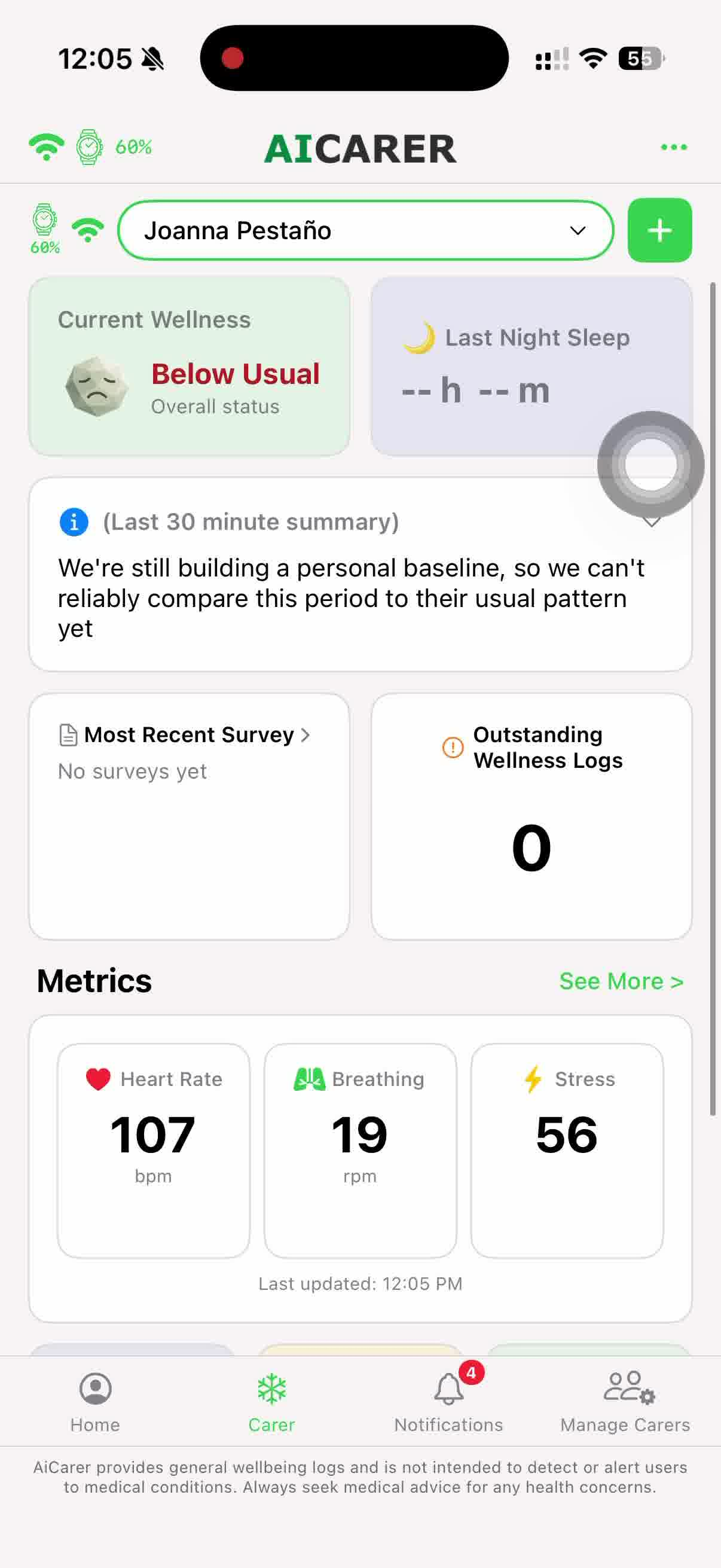
The annotated view below highlights each part of the home dashboard and what it is used for.
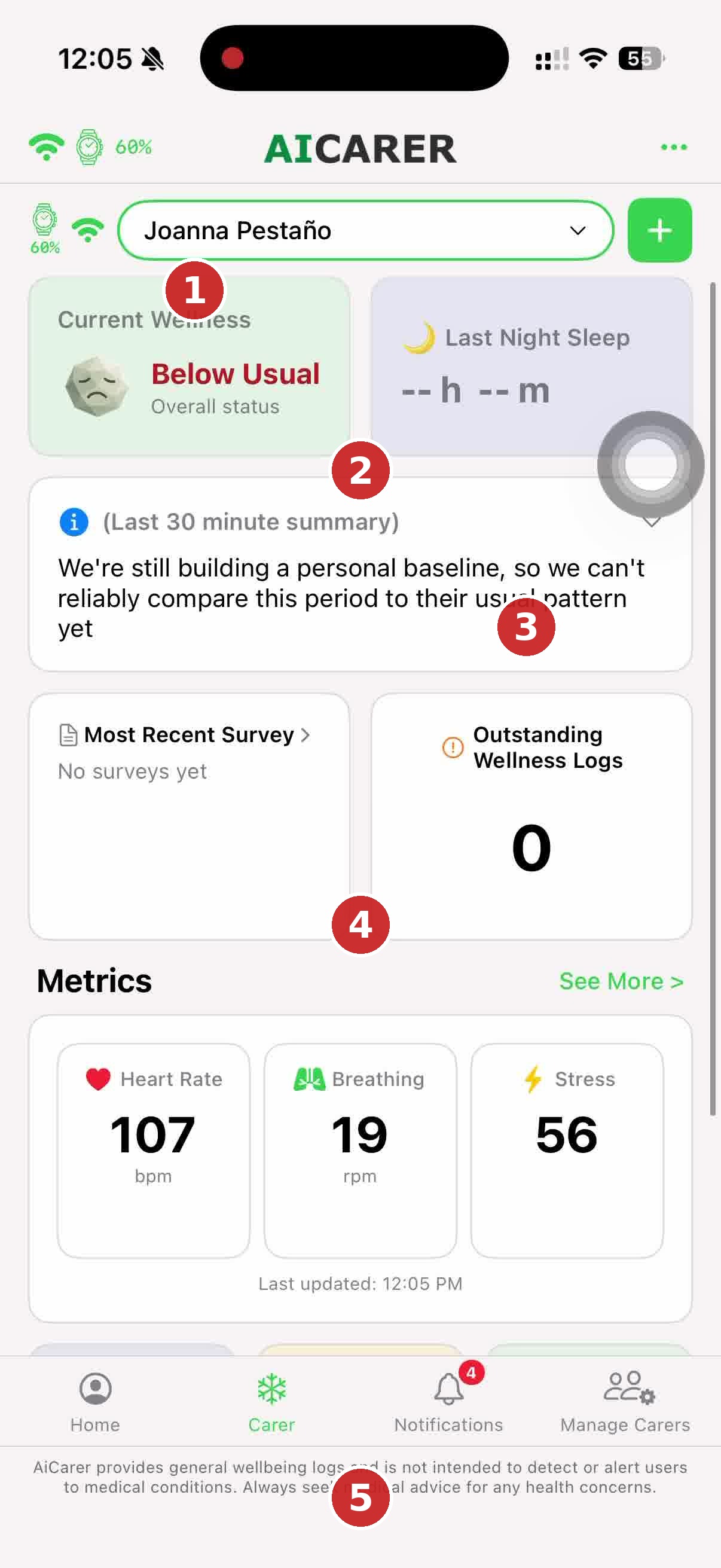
What's on this screen
① Current Wellness Status
Gives an immediate view of the current status of the person being cared for. Please note this requires the first 2 weeks of baseline to have been completed.
② Last 30 minute summary
After 2 weeks, this will provide a summary of the activity of the person being cared for the last 30 minutes.
③ Outstanding Wellness Logs
Shows whether any requested or automatically triggered wellness logs are still waiting to be reviewed.
④ Metrics Summary
Surfaces current heart rate, breathing, and stress at a glance, with a link to see more detail. When baseline is complete, you will see what the normal range is, allowing you to know if their current biometrics are within normal or sitting outside the typical ranges.
⑤ Navigation Menu
Moves between Home, Carer, Updates, and Manage.
On this screen, the carer can usually understand four things at a glance:
- whether the wearable is connected
- whether the recent status looks calm or unusual
- whether there are any outstanding wellness logs
- whether there is a recent survey or check-in waiting to be reviewed
A Good First Test: Request a Wellness Log
One of the best ways for a new carer to learn how AiCarer works is to request a wellness log manually. This lets them see the flow from request, to data collection, to returned report.
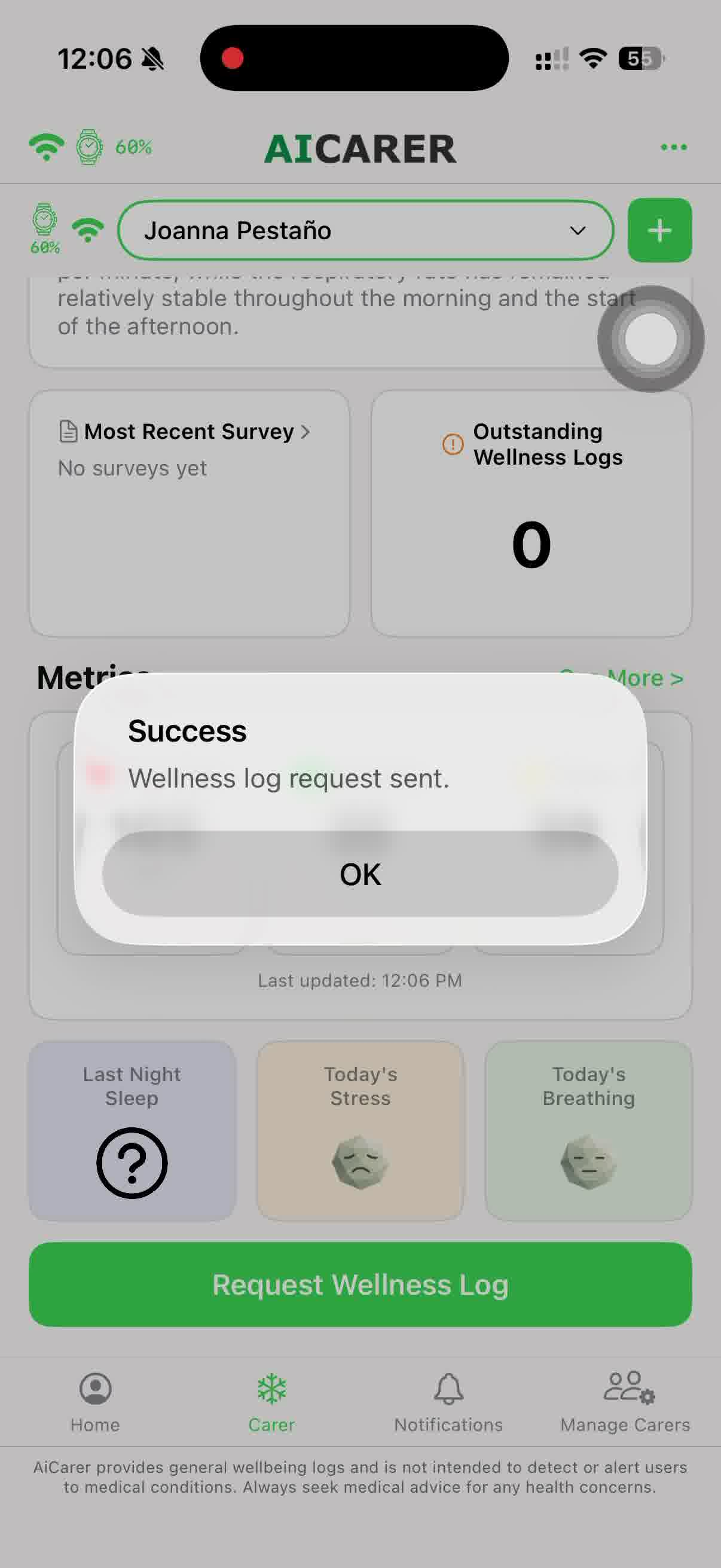
STEP 1 — Request a Wellness Log
Open the Carer Dashboard, select the person being cared for if needed, and tap `Request Wellness Log`.
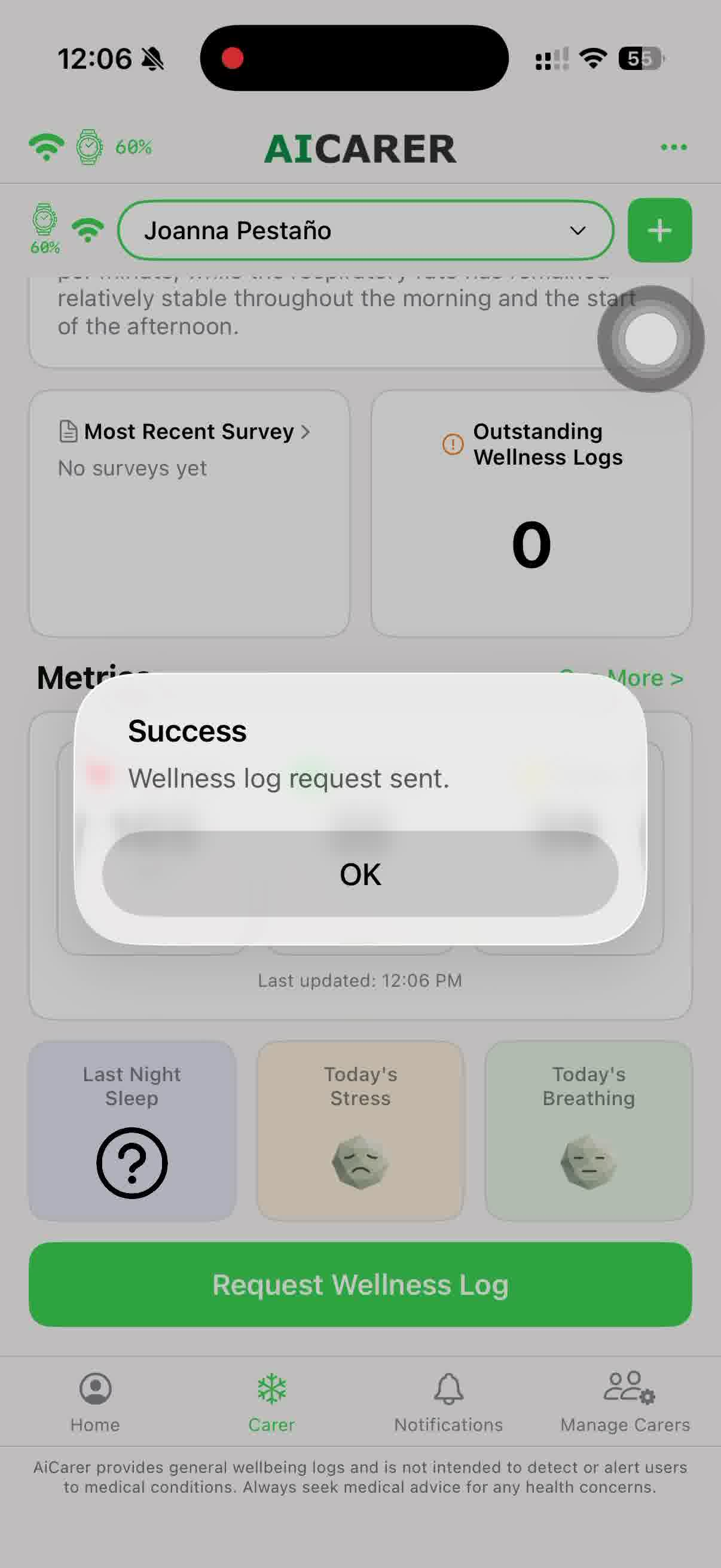
Once the request is sent, AiCarer confirms that the request has been recorded. The waiting period is usually around 60 seconds. During that time, the system pulls together recent health and contextual information so the result is more useful than a simple instant alert.
What happens next:
- the request is recorded in the app
- data continues collecting during the waiting window
- the carer receives an update when the result is ready
- the finished log appears as a report with both summary and trend information
When the report is ready, You will find it in the wellness logs menu item on the top right menu. This will show you the details of the wellness log and you can tap view location to see the location of the person.
Wellness Log Results
STEP 2 — Wait 30–60 Minutes While Data Is Collected
When the log comes back, the first screen acts like a snapshot summary. It helps the carer understand whether the overall direction looks stable, improving, or concerning.
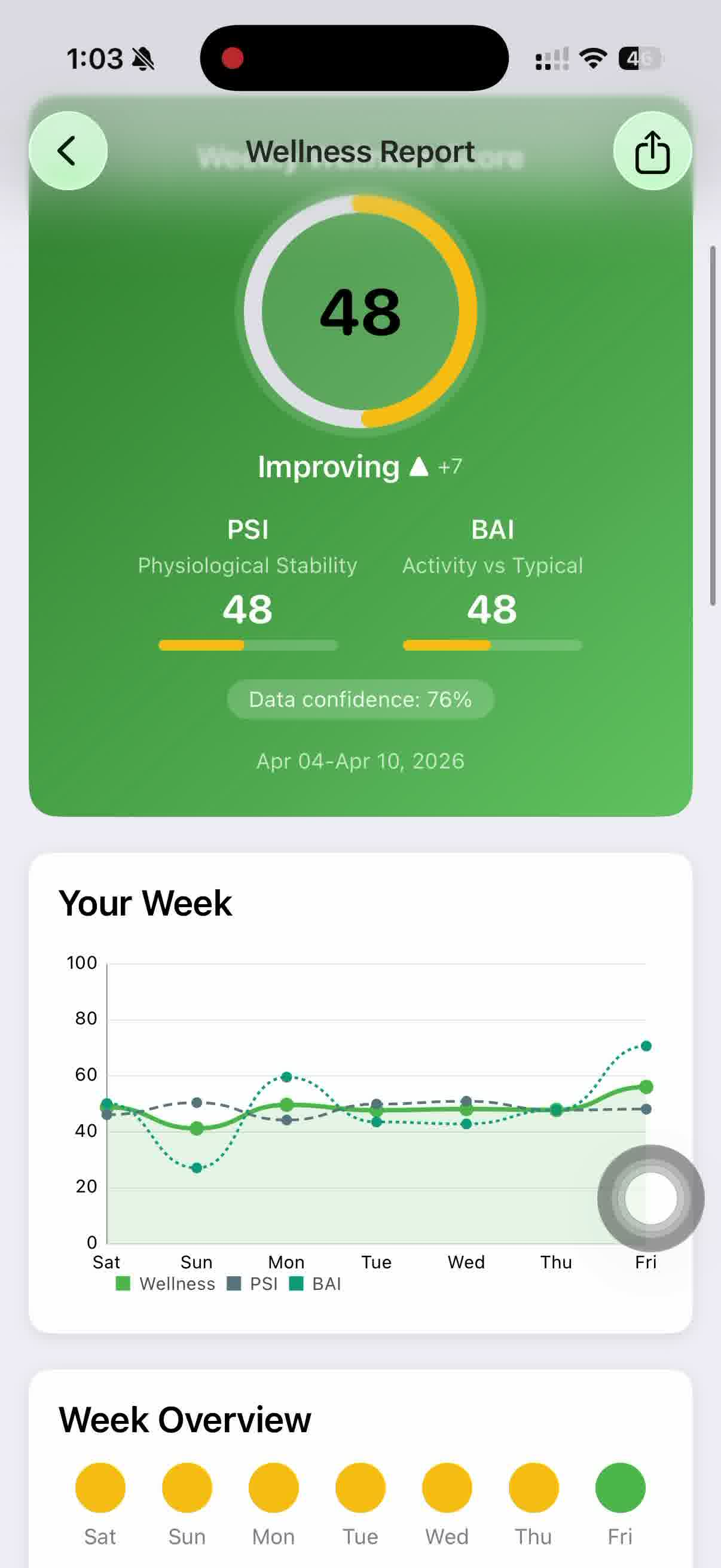
This report screen introduces a few concepts that are important during the first two weeks:
- a headline wellness score or status
- PSI, which reflects physiological stability
- BAI, which compares activity with what is typical for this person
- a data-confidence indicator, which matters because the system is still learning
For a new user, this is especially useful because it shows that AiCarer is not only recording readings. It is trying to compare what is happening now with what seems normal for that individual.
The annotated view below highlights each part of the wellness log result and what it means.
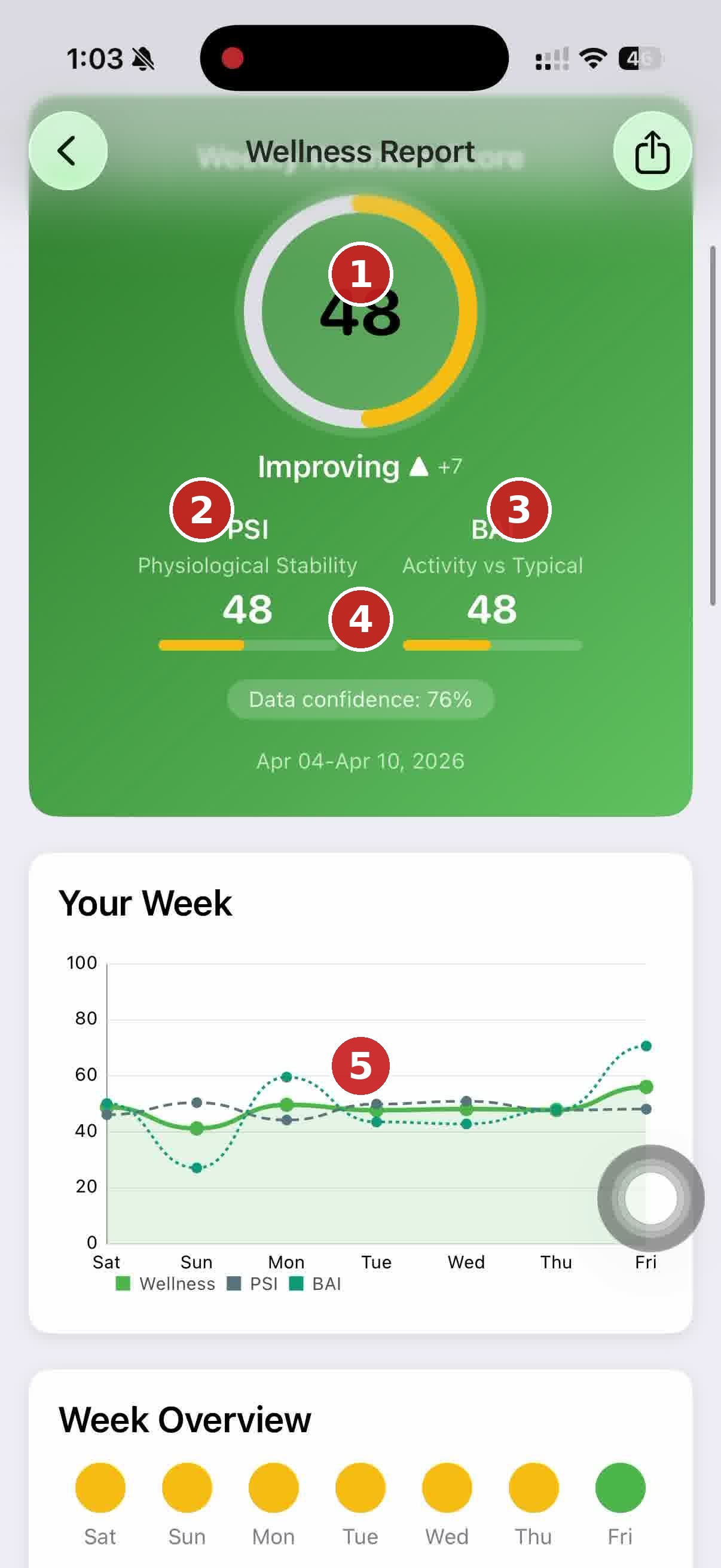
What's on this screen
① Wellness Score
A single headline number summarising overall status for the period, labelled in plain language (for example, "Slipping") rather than left as a bare figure.
② PSI (Physiological Stability)
Reflects how stable the person's physiological signals have been — a lower number suggests more variation than usual.
③ BAI (Activity vs Typical)
Compares recent activity levels against what's typical for this person, rather than a fixed population average.
④ Data Confidence
Shows how complete or reliable the available data is for this period — useful context while AiCarer is still building its baseline.
⑤ Weekly Trend Chart
Plots wellness, PSI, and BAI across the week so a carer can spot a developing pattern rather than reacting to a single reading.
Next, review the trend view to see whether the pattern is changing over time.
Why the Trend View Matters
STEP 3 — Review the Result and Trend
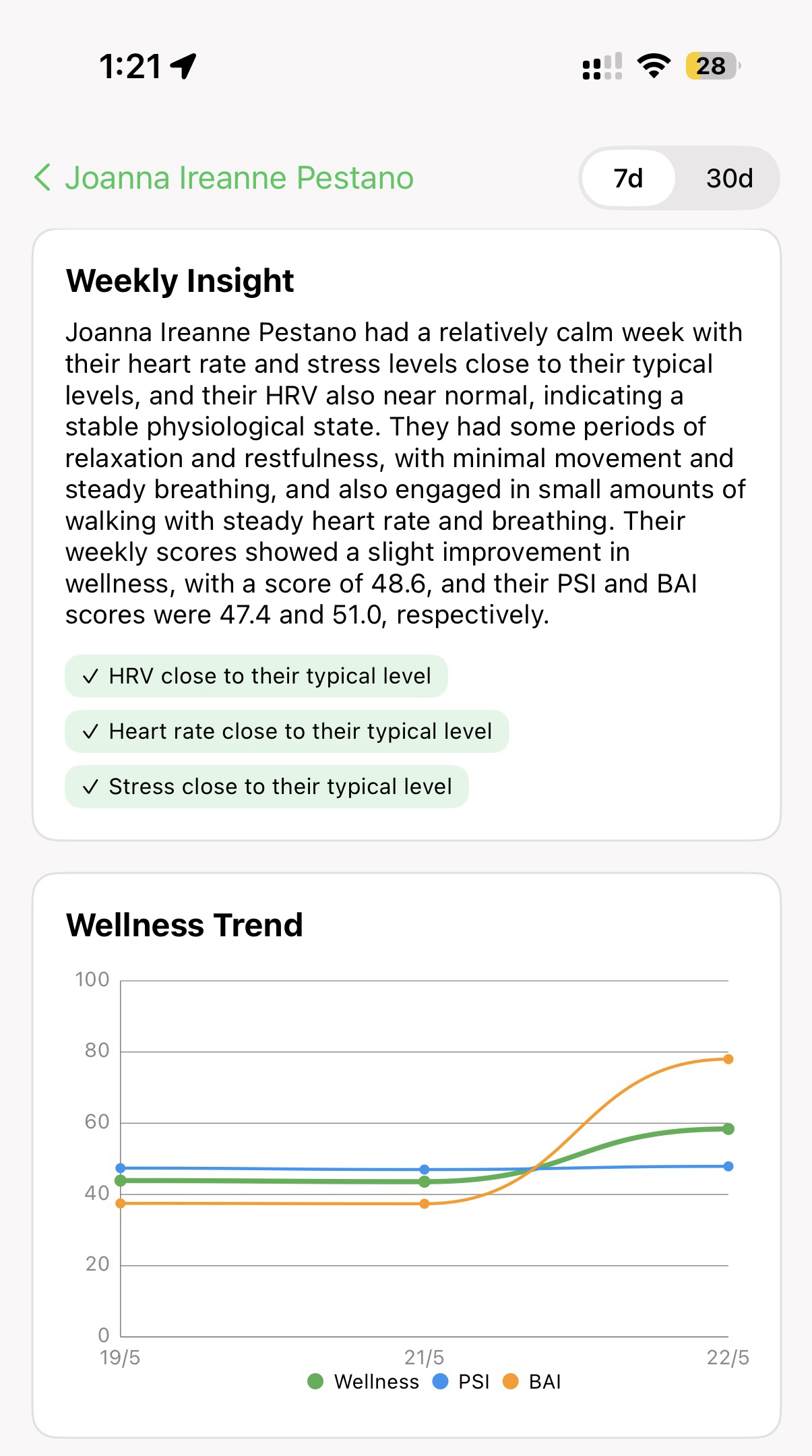
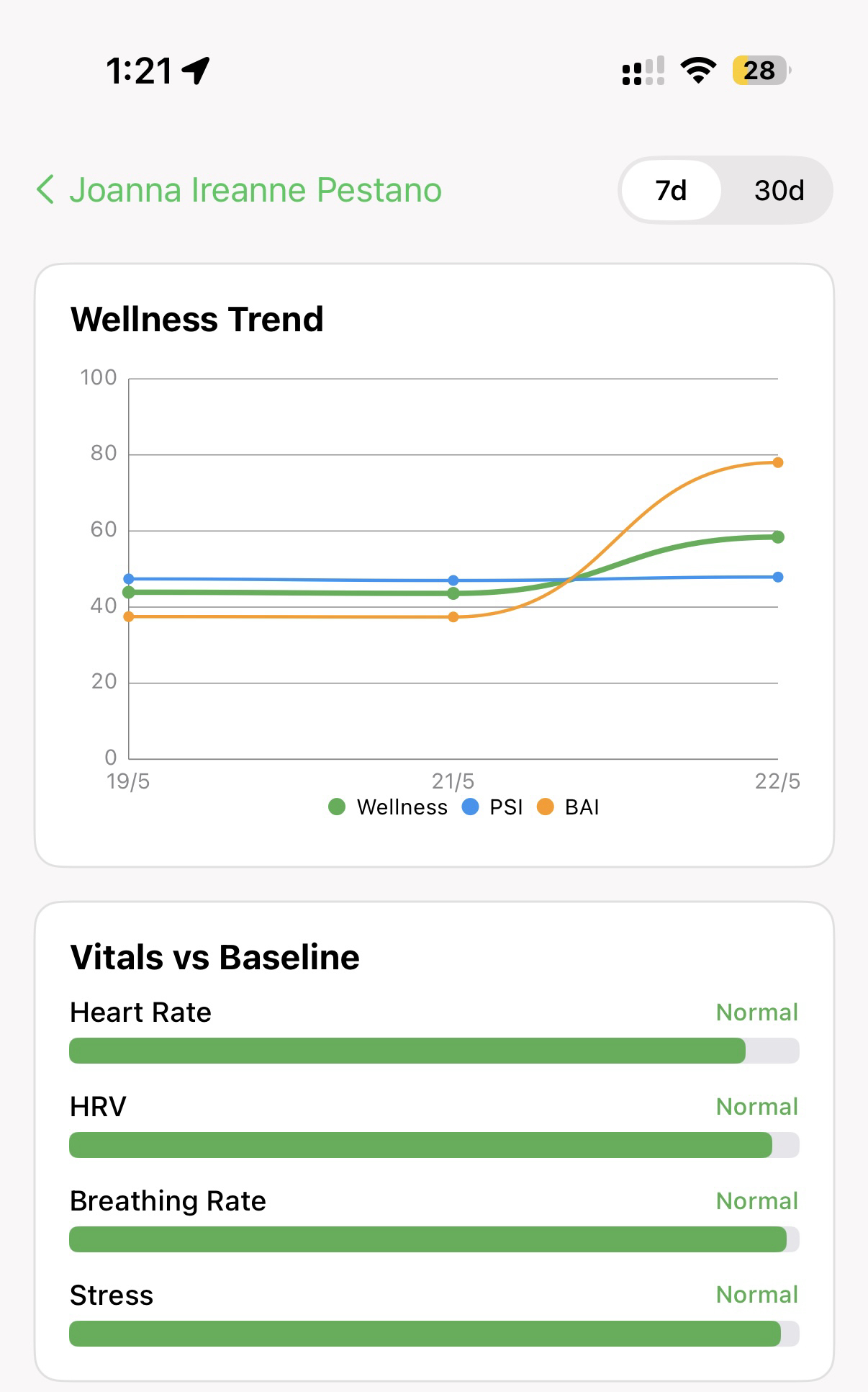
A single score is helpful, but the trend screen is where AiCarer starts to feel more intelligent. This view helps the carer look beyond one moment and see whether a pattern is starting to emerge across days.
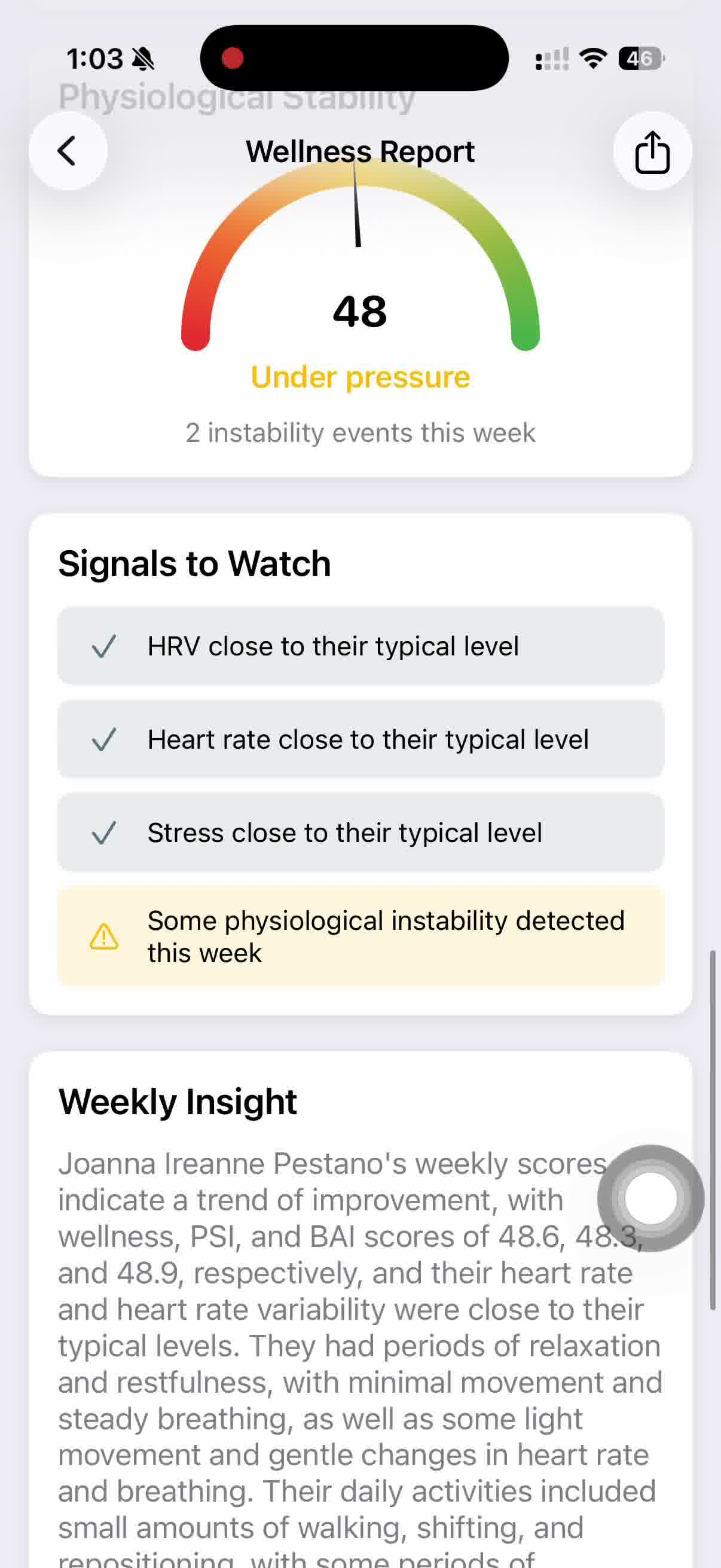
This screen shows:
- the general pressure or stability level for the week
- the number of instability events recorded
- signals that look close to normal
- signals that may need more attention
- a short weekly insight in plain language
That plain-language summary is especially important for onboarding because it helps carers understand the app without needing to interpret every chart alone.
Next, AiCarer marks the log as ready and notifies the carer.
Behind the scenes: AiCarer pulls together recent wearable data, movement, stability indicators, and location context, then compares it against this person's usual pattern rather than a generic baseline.
Expected result: A finished wellness log appears in the app with a headline score, PSI, BAI, and a trend view, and the carer is notified that it's ready to review.
Notifications Are Part of the Experience
New carers should also spend a moment in the notifications area, because many of the app's actions route back through it. Wellness requests, invitation activity, and follow-up prompts can all appear here.
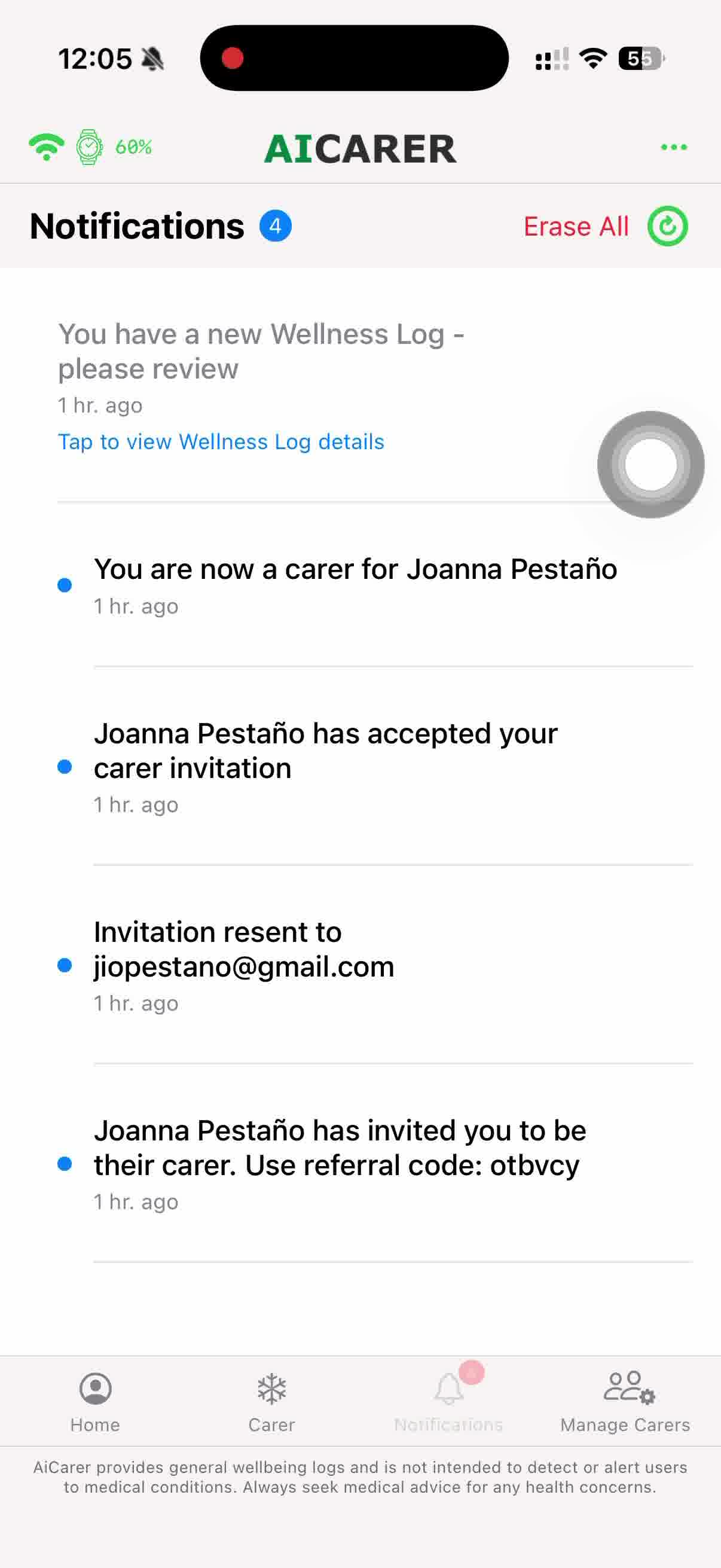
This helps set expectations early. AiCarer is not only something the carer opens manually. It is also something that pushes updates back when there is something worth reviewing.
A Second Good Test: Try the Alert Button
Alongside requesting a wellness log, a great second thing for a new carer to test is the Alert button. This is the panic/SOS style feature that lets the person being cared for signal for help directly.
STEP 1 — Press the Alert Button
From the home screen, the person being cared for sees a large ALERT button with the instruction to tap it to send an alert to carers.
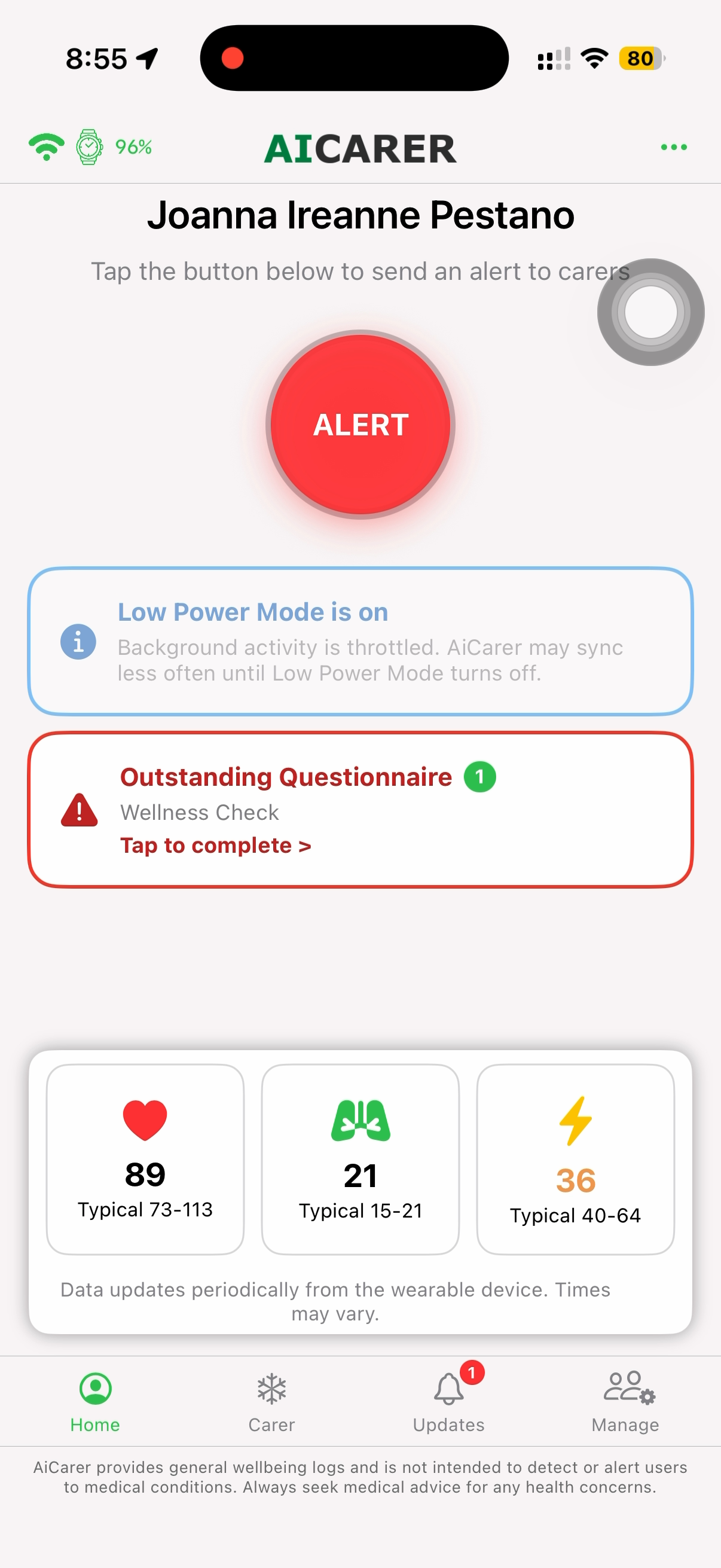
The annotated view below highlights each part of the home screen and what it is used for.
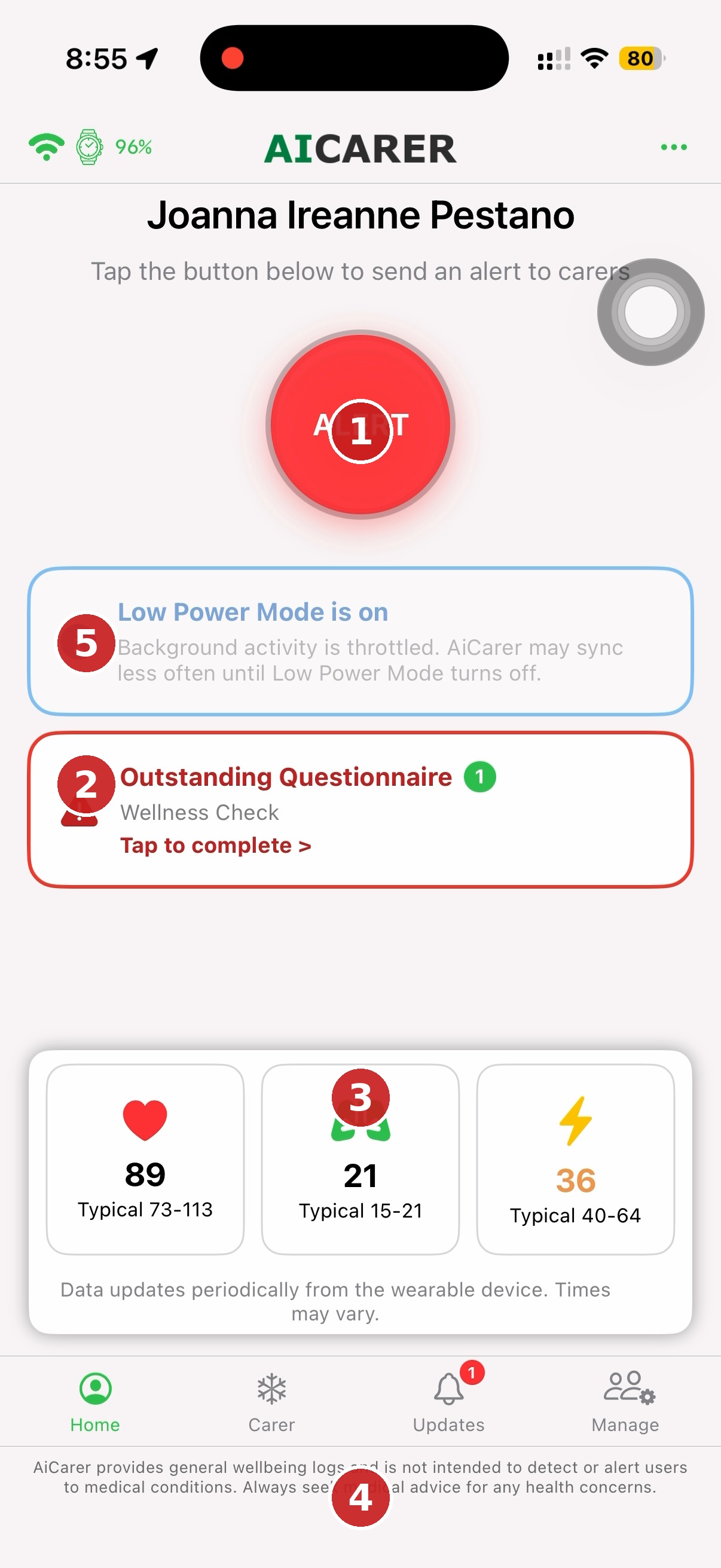
What's on this screen
① Alert Button
Immediately begins collecting the user's latest information before notifying all connected carers, giving carers both an alert and recent context to help them respond.
② Low Power / Battery Warning
Lets the person being cared for and their carers know background activity is throttled, so AiCarer may sync less often until the phone's power-saving mode is turned off.
③ Outstanding Questionnaire
Shows any questionnaire waiting to be completed, with a direct link to finish it without hunting through the app.
④ Health Summary
Displays the latest wearable readings — heart rate, breathing, and stress — alongside each metric's typical range for this person.
⑤ Navigation Menu
Moves between Home, Carer, Updates, and Manage — the four main areas of the app.
Next, AiCarer collects current data before the alert is sent.
STEP 2 — Data Is Collected
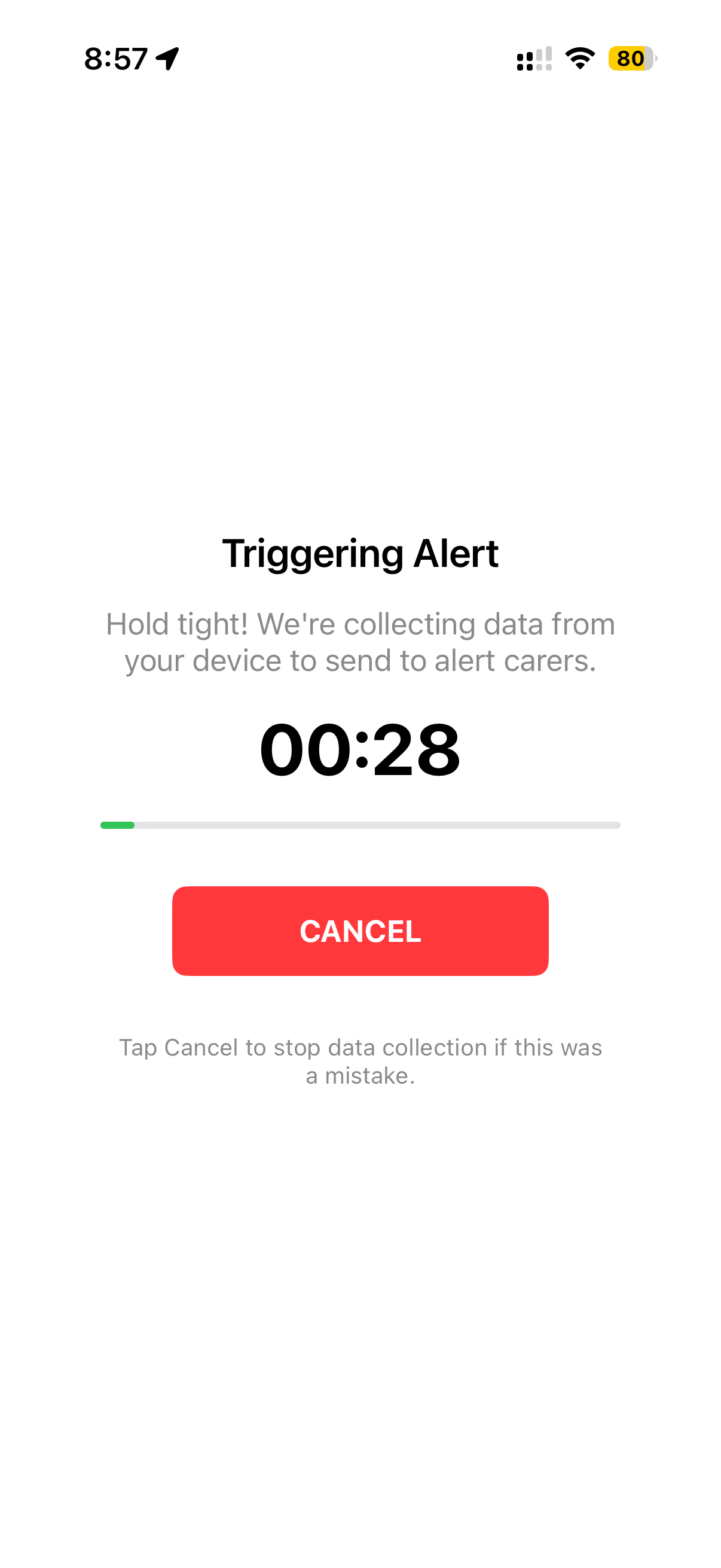
Tapping ALERT starts a short data-collection countdown. AiCarer gathers current information from the connected device before notifying carers, and gives a brief window to cancel in case of an accidental tap.
Next, the person is asked a follow-up question so carers receive useful context.
STEP 3 — Follow-Up Question
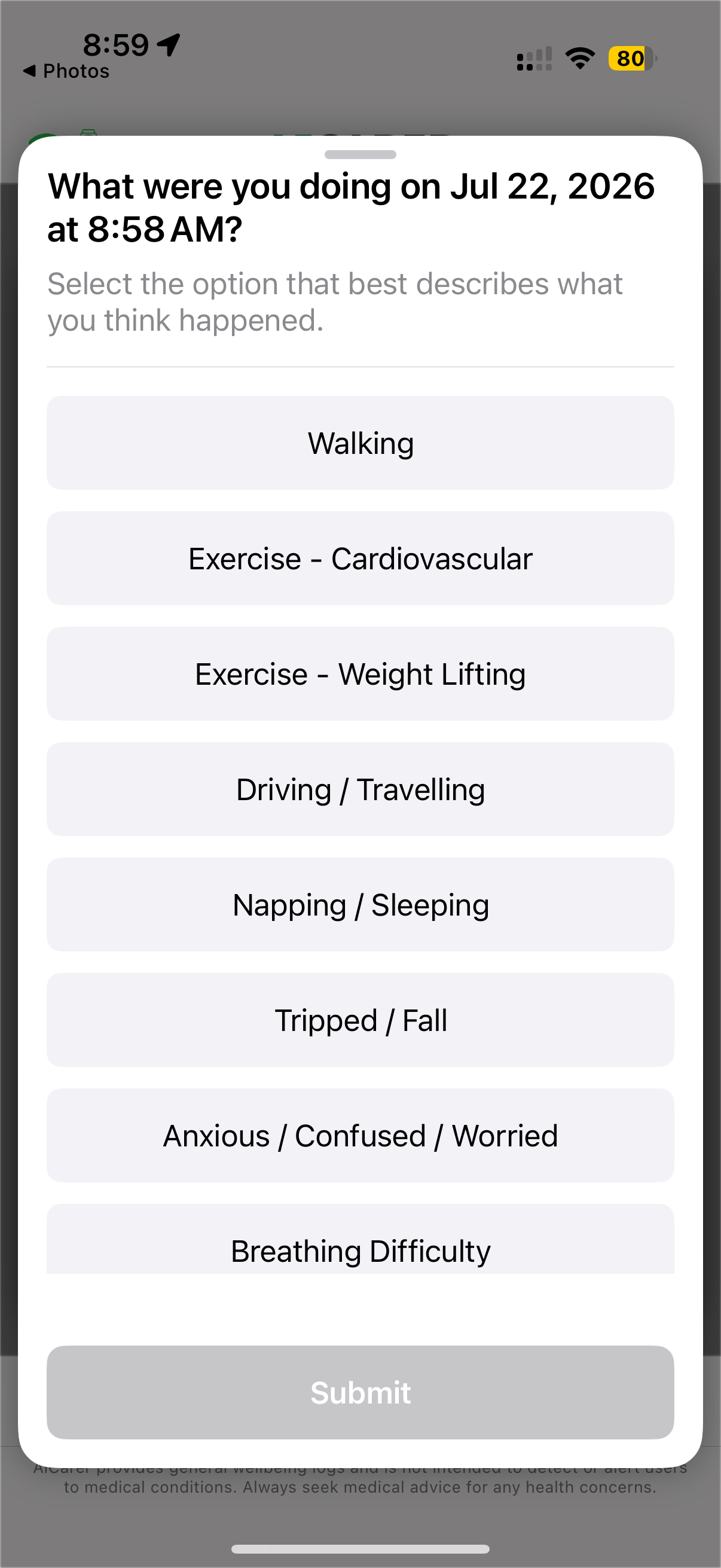
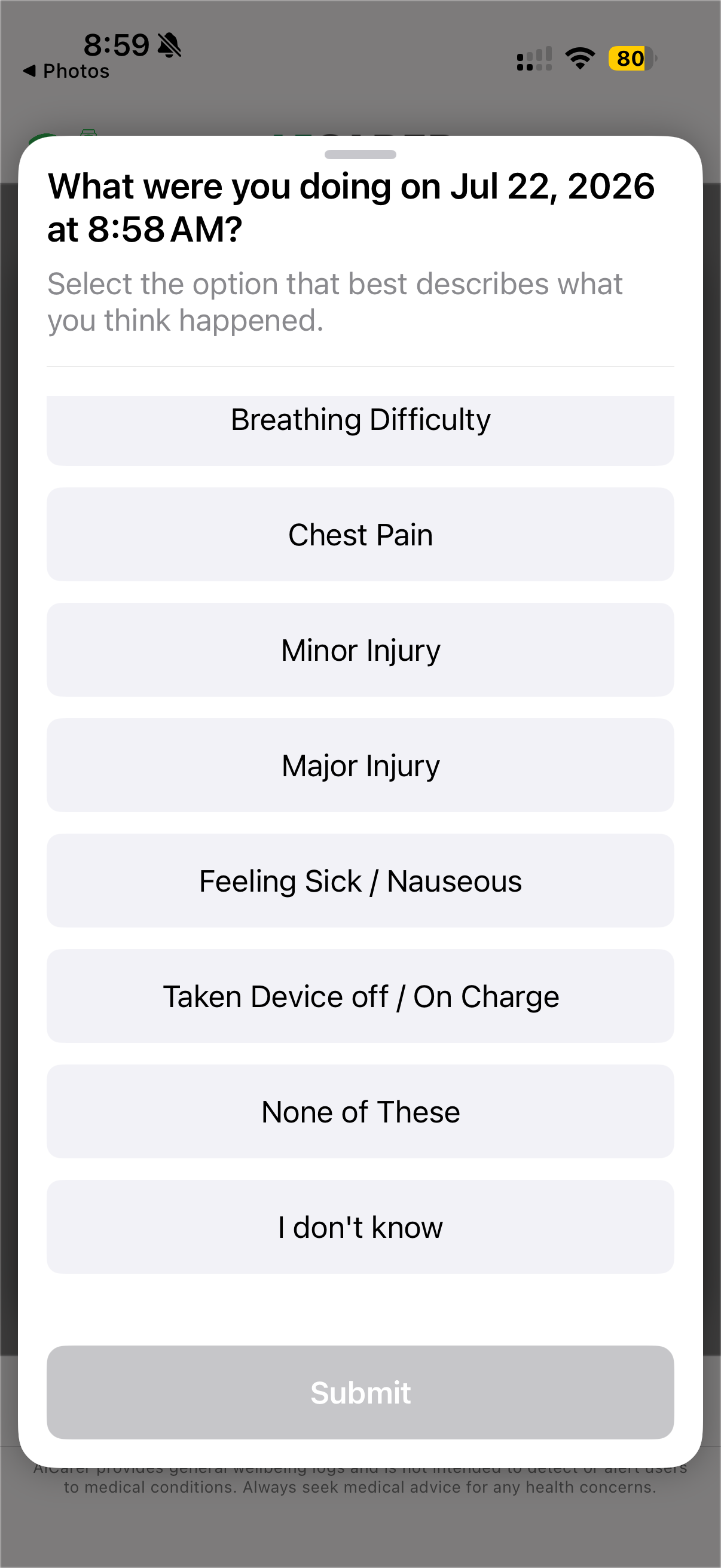
Once the countdown finishes, the person being cared for is asked a short follow-up question so carers get useful context rather than just a bare alert.
Next, connected carers receive the alert and can review what happened.
Behind the scenes: AiCarer pulls the latest wearable and location data before anything is sent, so the alert carries context rather than arriving empty.
Here's what that confirmation actually looks like once an alert has been sent:
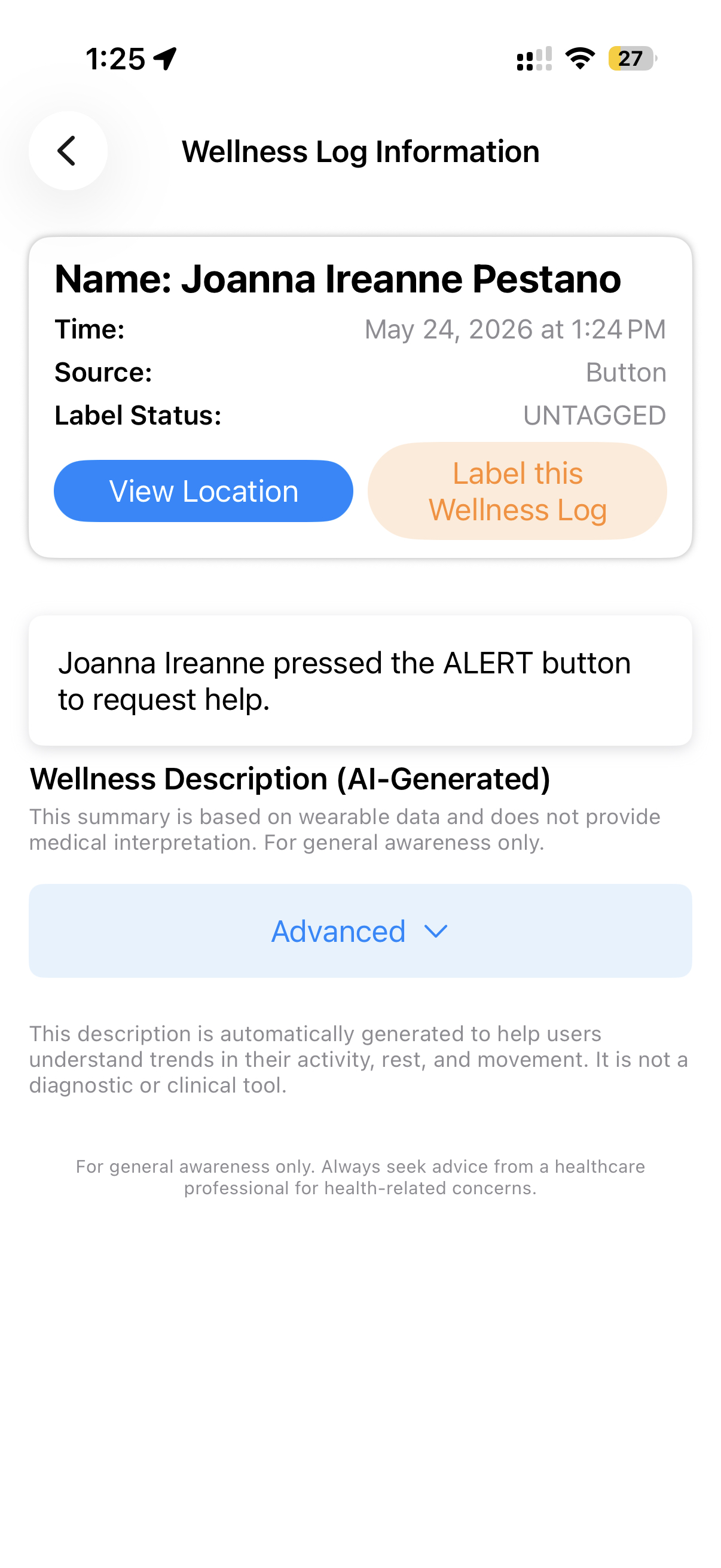
Expected result: Connected carers are notified with the alert, and can open the resulting log to see exactly when and how it was triggered, along with the wearable data collected at the time.
Common Early Questions
Why does the app not show a full picture right away?
Because the baseline is still being built. The first two weeks are designed to collect enough real-world information to make later insights more accurate.
Does a new user need to worry if the dashboard looks light on insights at first?
No. Sparse early data is normal. The important thing is that the wearable device is connected, the app can send updates, and test actions like a wellness log request are working.
What should a carer test in the first two weeks?
These checks work best when the connected experience is already stable. In practical terms, that means the person being cared for is on the correct product path for their setup — Ayla only or AiCarer Complete — and, for AiCarer Complete, the wearable remains connected and worn consistently while the baseline is building.
- open the dashboard and understand the key cards
- request one wellness log
- review the returned report and trend page
- check that notifications are arriving
- confirm the wearable device remains connected and worn consistently
Reminder
AiCarer provides general wellbeing information and is not intended to detect, alert users to, or diagnose medical conditions. Health concerns should always be followed up through the appropriate clinical pathway.