
What the Care Network Is
The shared care network is the part of AiCarer that lets more than one person stay connected to the same person being cared for. This matters because support usually sits across family members, neighbours, and professional carers rather than resting with one person.
In practice, the care network spreads visibility and responsibility. Several trusted people can receive updates, follow the same dashboard, and stay informed when something changes.
Where the Invite Starts
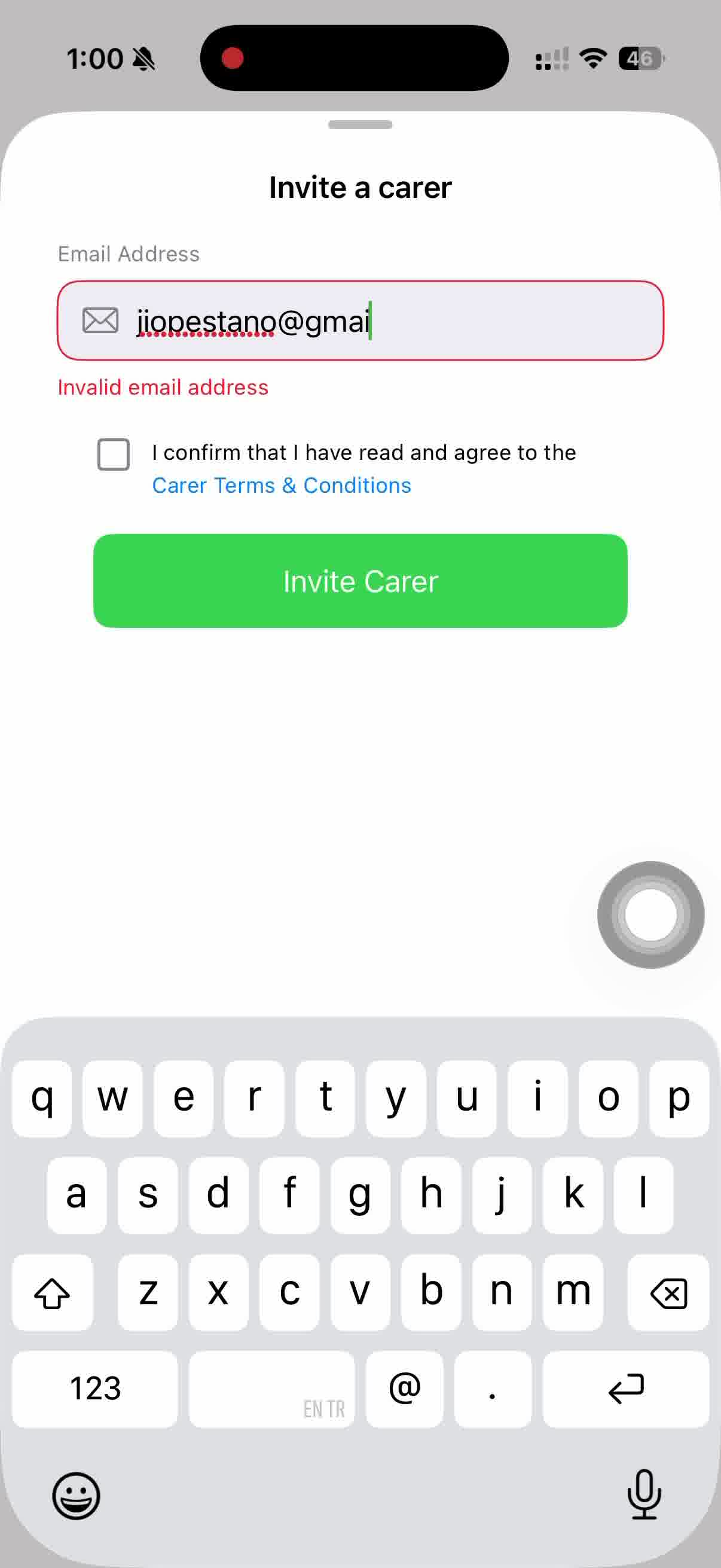
Every connection begins with an invitation sent from the app. The screen below is the carer invitation form, and it is the starting point for adding anyone new to the care network.
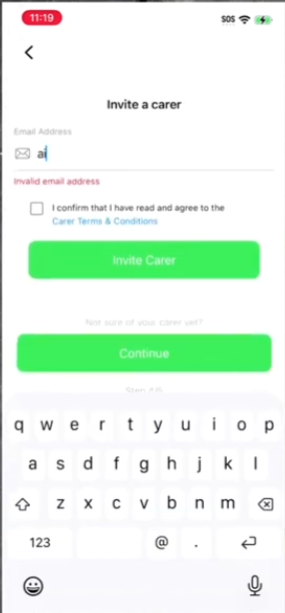
Step 1 — Invite a carer
This screen keeps the invite step deliberately short. It contains only:
- The email address of the person being invited.
- The terms and conditions acknowledgement.
- The invite action itself.
Because there is nothing else to complete here, inviting a carer stays a quick task rather than a second setup process.
What the New Carer Does Next
Once the invitation has been sent, the next step happens in the invited carer's own app. They receive an invitation with a code, and that code is what links them to the right person.
Step 2 — Enter the invite code
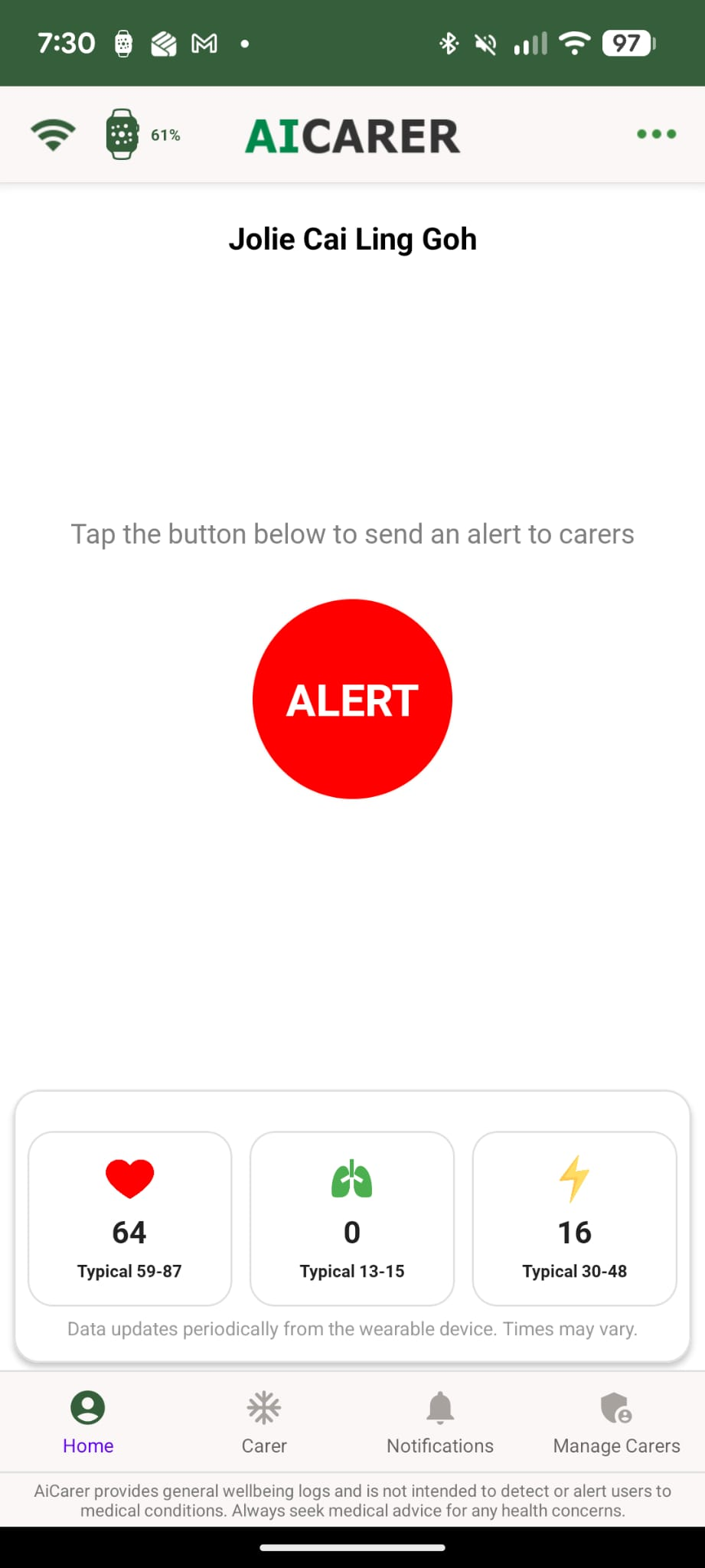
This step shows that an invitation is more than an email notification. The in-app linking step is what attaches the new carer to the correct person being cared for, which keeps the connection deliberate and secure.
What Being Connected Looks Like
Once the invitation has been accepted and the account has been linked successfully, the new carer is taken to the connected dashboard. This is the first screen that confirms the connection has worked.
Step 3 — Land on the connected dashboard
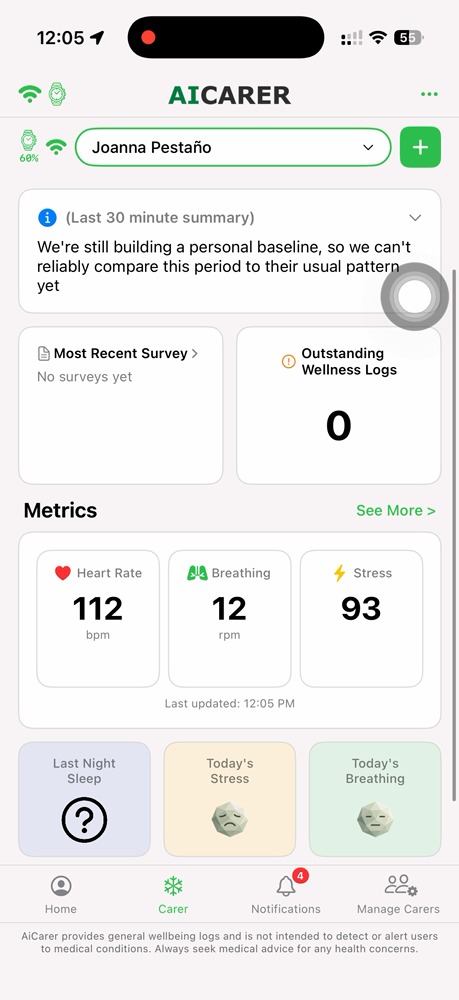
The dashboard shows the same wellbeing information the existing carers already see, which is why it marks the end of setup and the start of everyday use.
Behind the scenes: The invite code links the new carer's own account to the existing person being cared for, so the account owner never has to share their own login details.
Expected result: The new carer appears on the Manage Carers list alongside any existing carers, and can immediately see the same person's dashboard, wellness logs, and alerts.
From here, the newly connected carer can begin viewing updates, wellbeing information, and shared care activities.
More Than One Carer
When several carers are connected, the support circle becomes genuinely shared rather than sitting with one person:
- Reduces reliance on a single family member to notice and respond to everything.
- Improves communication, because everyone is working from the same information.
- Provides continuity when someone is travelling, unwell, or otherwise unavailable.
- Keeps updates, alerts, and wellness information visible to the whole support team.
- Makes the care arrangement easier to coordinate across a household or care service.
Sharing the view does not divide responsibility into rigid roles. It simply means more than one trusted person can see what is happening and step in when needed.
Add, Remove, and Manage Carers
Carers are not fixed once they are connected. The care network can be adjusted at any time from within the app:
- Carers can be invited into the network.
- Invited carers connect using their own app and invite code.
- Once connected, they can view the information appropriate to their role.
- The account owner or managing carer remains in control of who is connected.
From the Manage tab, every carer connected to a person is listed together with their current status, so it is easy to see the whole network at a glance.
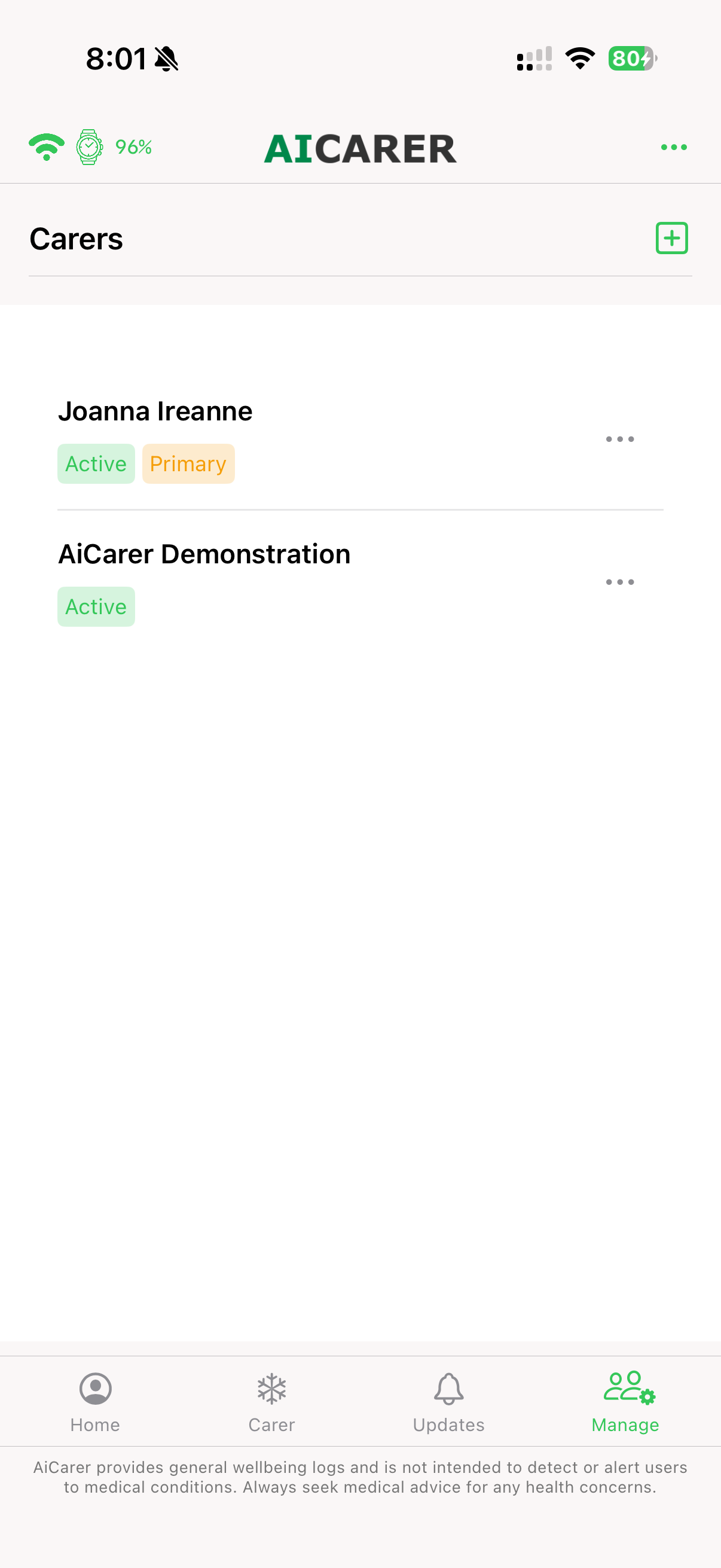
Tapping the three dots next to a carer opens the management actions for that person: Disable, Make Primary, or Remove.
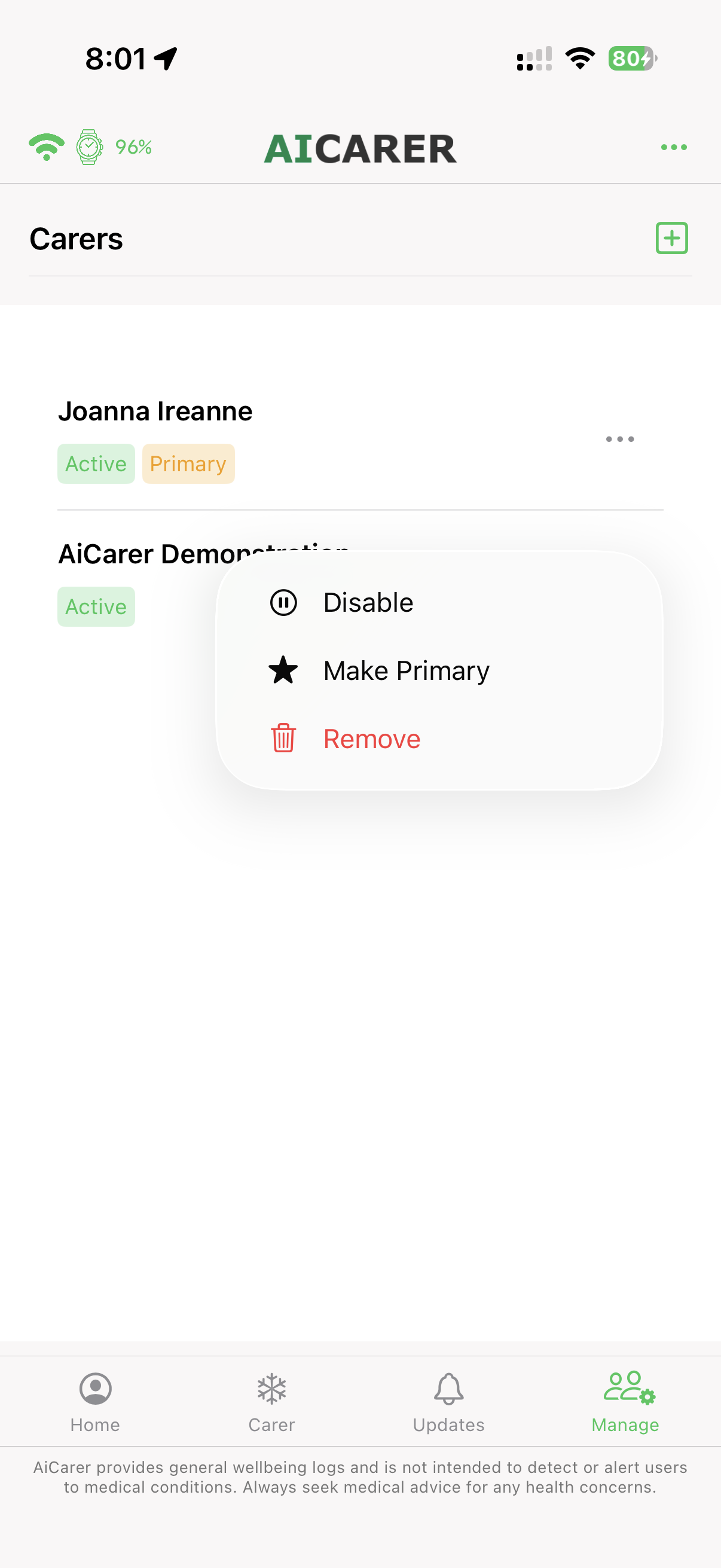
Together, these controls allow the care network to adapt as family situations, responsibilities, and support arrangements change over time — without starting the setup again.
The annotated view below highlights each part of the carers list and what it is used for.
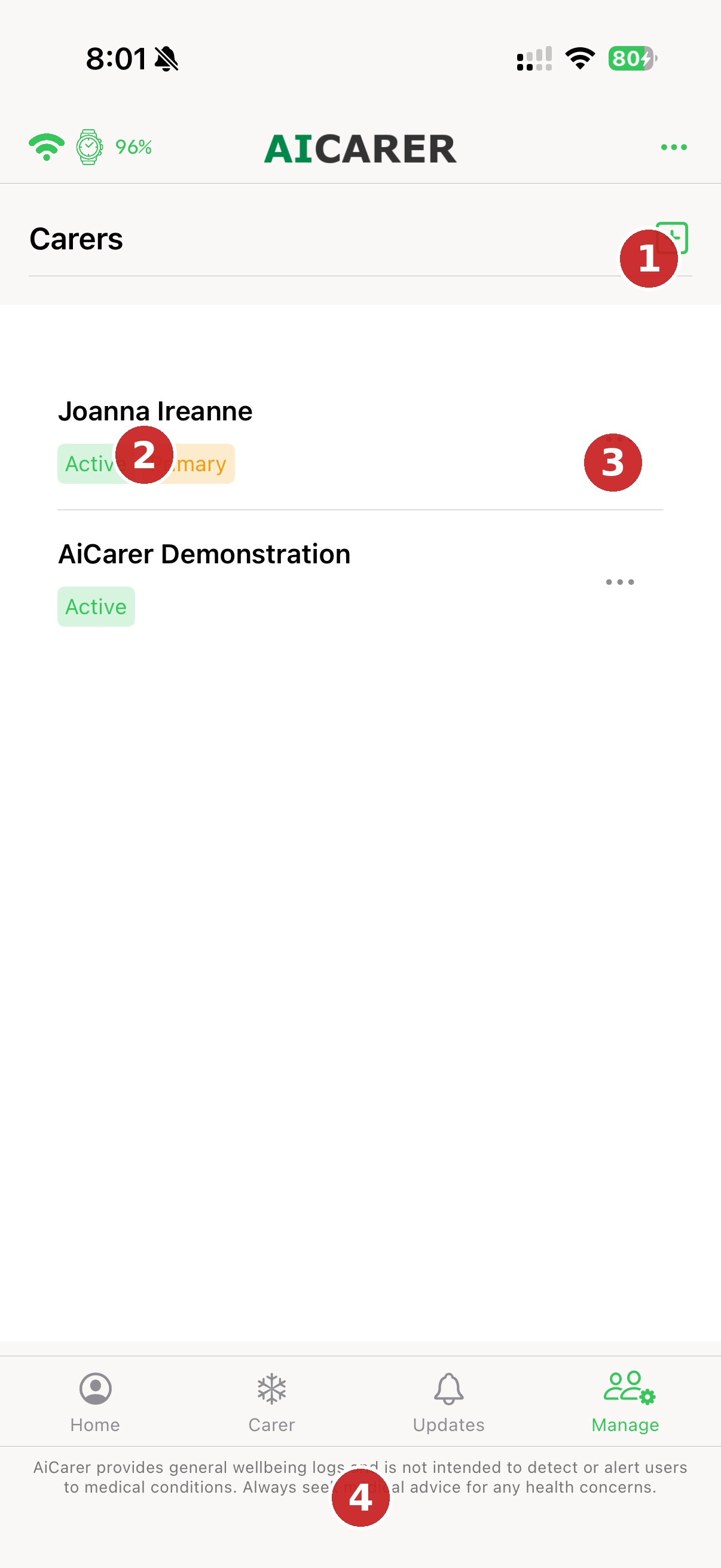
What's on this screen
① Add Carer
Starts the invite flow for connecting a new carer to this person.
② Carer Status Tags
Shows at a glance whether a carer is Active and whether they are the Primary contact.
③ Carer Options Menu
Opens Disable, Make Primary, or Remove for that specific carer.
④ Navigation Menu
Moves between Home, Carer, Updates, and Manage.
The next screen shows the management actions themselves, which is where a carer's access is paused, promoted, or ended.
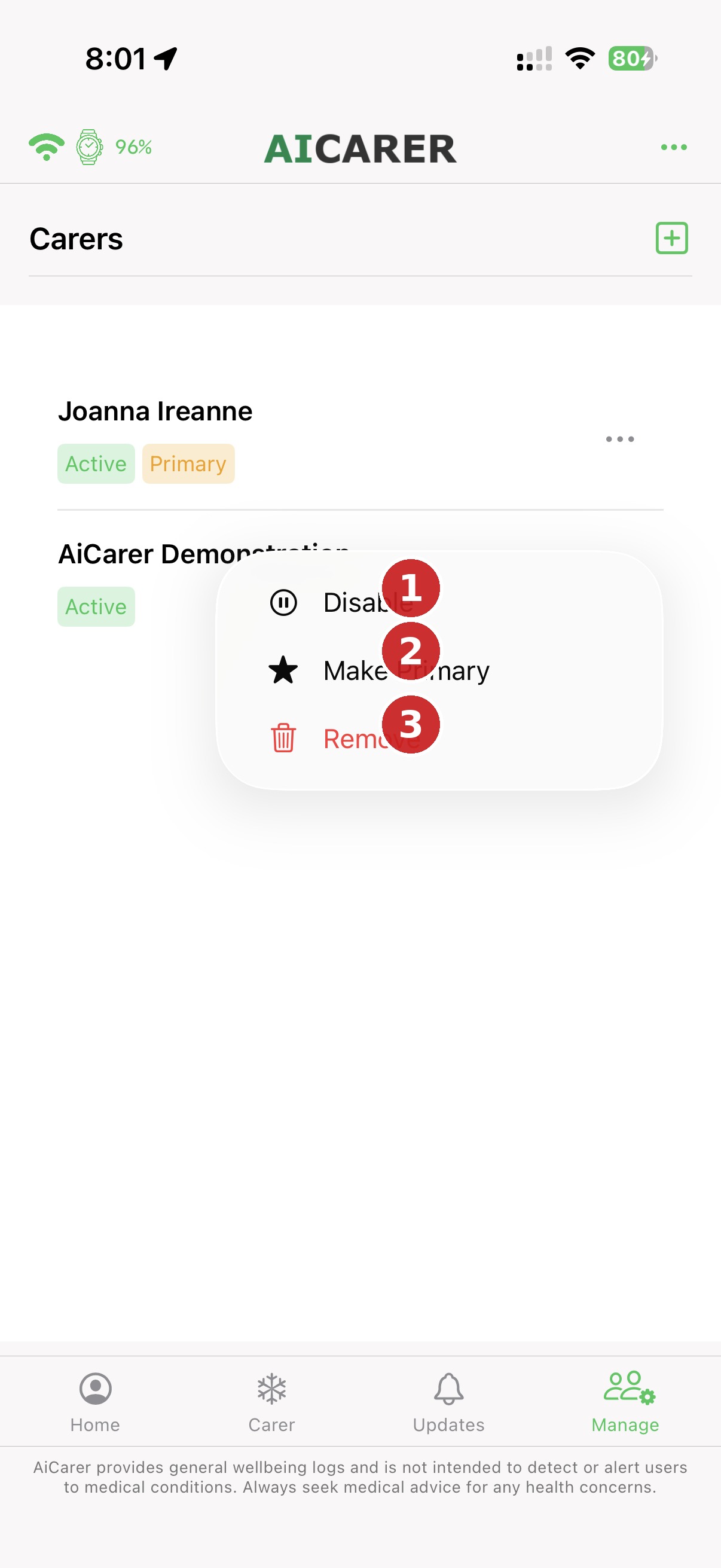
What's on this screen
① Disable
Pauses a carer's access without removing them from the network — useful for a temporary break rather than a permanent change.
② Make Primary
Promotes this carer to the main point of contact for the person being cared for.
③ Remove
Permanently disconnects this carer from the person's care network.
Managing all of these actions from one list keeps the care network simple to maintain, even when several people are involved.
The invite screen can also be reached directly from the Manage tab, so adding another carer later follows exactly the same steps.
Why Shared Care Matters
Care is rarely provided by one person alone. It is often shared between family members, neighbours, and professional carers, each helping in a different way and at different times.
- Trusted people stay connected without anyone sharing login details.
- Each connected carer sees the information appropriate to their role.
- Responsibilities can change over time as circumstances change.
- The person being cared for stays at the centre of the network.
With the care network in place, the next chapter looks at the information everyone is sharing: how wellness logs are created and read, and how location is used as context when it is needed.